Bulk Download Orders Product Images
1. Open your order
2. Click on Order Actions, then click on Download Images
.jpg?width=452&height=452&name=Subheading%20(1).jpg)
3. Select the size, then click Generate Media
Download Single Item Images:
1. Open the Product Page
Navigate to the product page for the item whose images you want to download.
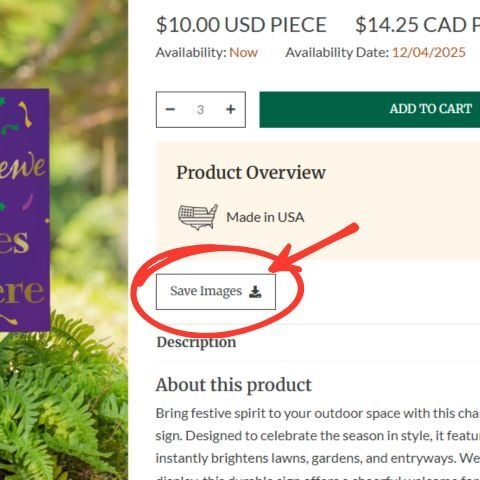
2. Click Save Images
On the product page, locate and select the Save Images button.
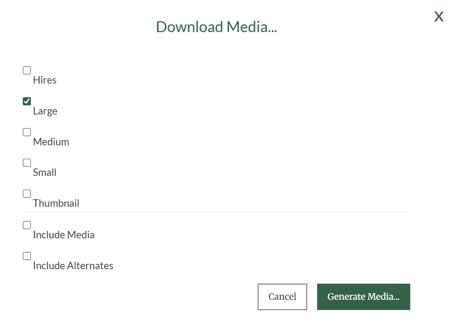
3. Choose Your Image Sizes
A menu will appear showing available image sizes.
Select the sizes you want to download.
4. Click Generate Media
After selecting your image sizes, click Generate Media.
Your images will begin downloading.
5. Extract the ZIP File (If Required)
Most devices will download the images as a ZIP file.
To access your images:
-
Locate the downloaded ZIP file on your device
-
Open or extract the ZIP file
-
Save the extracted images to your preferred folder
Note
If you’re using a mobile device or tablet, you may need a third-party app to unzip files.