
How to Add a New Credit Card and Pay an Invoice on Evergreen Wholesale
Follow the steps below to add a new credit card to your Evergreen Wholesale account and use it to pay an invoice. This process takes only a few minutes and is completed securely through the Payment Acceptance portal.
1. Click on Pay an Invoice
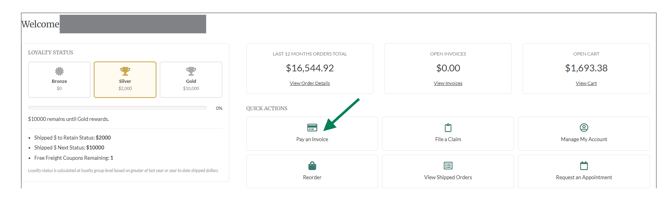
2. Click on Change Payment Method
Note: If you do not have a credit card on file for your account yet, please skip this step and proceed to step 3.
Supported card types: Visa, Mastercard, American Express, and Discover.

3. Click on Add New Card

4. Complete the form by entering your Billing Information

5. Enter your Payment Details

6. Click on Place Order

7. Review your billing and payment information
Note: If any billing or payment details appear incorrect, click Back to return to the previous step and make corrections before proceeding.

8. Click on Return to Website

9. To select your card for payments, Click on Change Payment Method

10. You will see the new card listed. Click on the new card to select it, then proceed to pay your invoice.
